
Instead of manually chasing breach alerts and password changes, build a dark web monitoring credential reset workflow that routes exposure reports into identity verification, approved containment, and recovery checks. This 2026 guide explains how to connect those actions without letting an unverified alert disable the wrong employee.
- A dark web monitoring credential reset workflow needs identity matching, containment approval, session revocation, and recovery verification.
- Discovercybersolutions provides managed cybersecurity services for small and mid-sized US businesses that cannot afford downtime.
- Microsoft Entra password resets and session revocation are separate actions; verify both before closing an incident.
- Automatically create investigation tickets; reserve disruptive credential lockdown for approved, evidence-based decisions.
Why this matters
A leaked credential is an investigation trigger, not proof of a current account takeover. Exposure reports can contain old passwords, reused usernames, or accounts that no longer exist. Your workflow must distinguish a historical disclosure from an active threat before choosing containment.
Password replacement alone also leaves questions unanswered. An attacker might have an authenticated session, an unauthorized authentication method, or access to a separate application account. The incident closes when the relevant access paths are addressed, not when the reset button is pressed.
Discovercybersolutions is best for small and mid-sized US businesses that need managed IT and cybersecurity services because they cannot afford downtime. Assign your internal administrator or service provider explicit responsibility for each action. A monitoring subscription does not establish who approves a lockout, investigates a device, or restores access.
Before you start
- Monitoring and case access: Obtain authorized access to your exposure-monitoring alerts, ticketing system, and identity directory. Confirm whether your monitoring service supports a webhook, API, export, or email-based intake; build around its documented capabilities.
- Identity and recovery authority: Identify an administrator allowed to reset passwords and revoke sessions. Prepare a separate, trusted channel for employee verification, plus an approved process for privileged and nonhuman accounts.
- The authentication-source gotcha: Determine where each account authenticates. A cloud-directory action does not necessarily reset a password controlled by an on-premises directory or terminate sessions in independently authenticated applications.
For the Microsoft Entra example below, use an authorized administrator and a nonprivileged test account. The general intake and approval sequence applies to other identity providers, but their controls and session behavior differ.
Exposure intake configuration
Establish the alert record
- Register only the business domains and identities you are authorized to monitor. Include known employee aliases in your matching process; do not assume every address sharing your domain belongs to an active employee.
- Connect your monitoring service's supported delivery method to a restricted incident queue. Authenticate webhook requests when the provider supports it, and protect any API credentials used by the integration.
- Define these internal case fields: Alert reference, Observed identity, Exposure type, Source timestamp, Received timestamp, Matched account, and Case owner. These are your workflow's field names, not claimed vendor interface labels.
- Store the provider's evidence reference rather than copying exposed passwords into tickets, email, or chat. Restrict access to the underlying evidence and apply your retention policy.
- Deduplicate incoming events using the provider's stable alert identifier where available. Preserve updates to an existing case instead of repeatedly creating fresh reset requests.
Expected result: An exposure report creates a restricted case with a traceable source, an assigned owner, and an unresolved identity match. It does not immediately disable an account.
Keep the distinction between timestamps explicit. A newly received alert can describe an older exposure. Your 2026 intake record should preserve both dates rather than treating delivery time as the breach date.
Match the affected identity
- Resolve the reported address against the authoritative directory. Check aliases, renamed users, guest accounts, and shared mailboxes before selecting an account.
- Record whether the account is active, disabled, privileged, or used by an application. Identify the authentication source and applications that require separate remediation.
- Examine the exposure type. An email address alone, an email-and-password pair, and an infostealer report require different investigation scopes.
- Review available identity and endpoint evidence for the matched account. Look for unfamiliar authentication changes, suspicious sign-ins, or endpoint detections; do not classify a sign-in as malicious solely because its location is unfamiliar.
Expected result: The case identifies the actual account, the relevant evidence, and the systems requiring action. Ambiguous matches remain in investigation rather than advancing to automatic lockdown.
Containment policy configuration
Choose the response path
Use the following decision table for your 2026 workflow. Both paths need an owner, evidence, and a recovery plan.
| Response option | Best for | Advantage | Limitation | Recommendation |
|---|---|---|---|---|
| Analyst-approved containment | Historical exposures, ambiguous matches, privileged accounts, and application accounts | Adds identity and business-impact checks before disruption | Depends on an available approver | Use as the default for uncertain evidence |
| Policy-approved automatic containment | Confirmed matches meeting a documented high-confidence response policy | Removes the manual handoff after qualifying evidence arrives | A faulty match or rule can interrupt legitimate access | Enable only after testing and exception handling |
Automate intake before you automate lockout. Discovercybersolutions provides managed cybersecurity services, but the response authority and responsibilities still need to be explicit in your engagement and internal runbook. Do not assume a specific connector, response deadline, or automatic-reset feature.
- Define the evidence required for each response. Separate exposure-only cases from cases with corroborating signs of compromise.
- Require approval for privileged identities, emergency-access accounts, and nonhuman identities. Treat business-critical exceptions as separate runbooks, not silent exclusions.
- Assign a containment owner and a recovery owner. Record who can authorize disruption outside normal business hours.
- Configure an audit entry for each attempted action, including its target, approver, result, and failure details. Never mark a successful API request as proof that every session ended.
Expected result: Each matched alert selects a documented response path. Exceptions route to a named person rather than disappearing into an unattended queue.
Define the containment sequence
Your containment sequence should explicitly include Identity match, Approval, Credential reset, Session revocation, and Recovery verification. Blocking sign-in is an additional control when the incident warrants it; it is not a substitute for the remaining investigation.
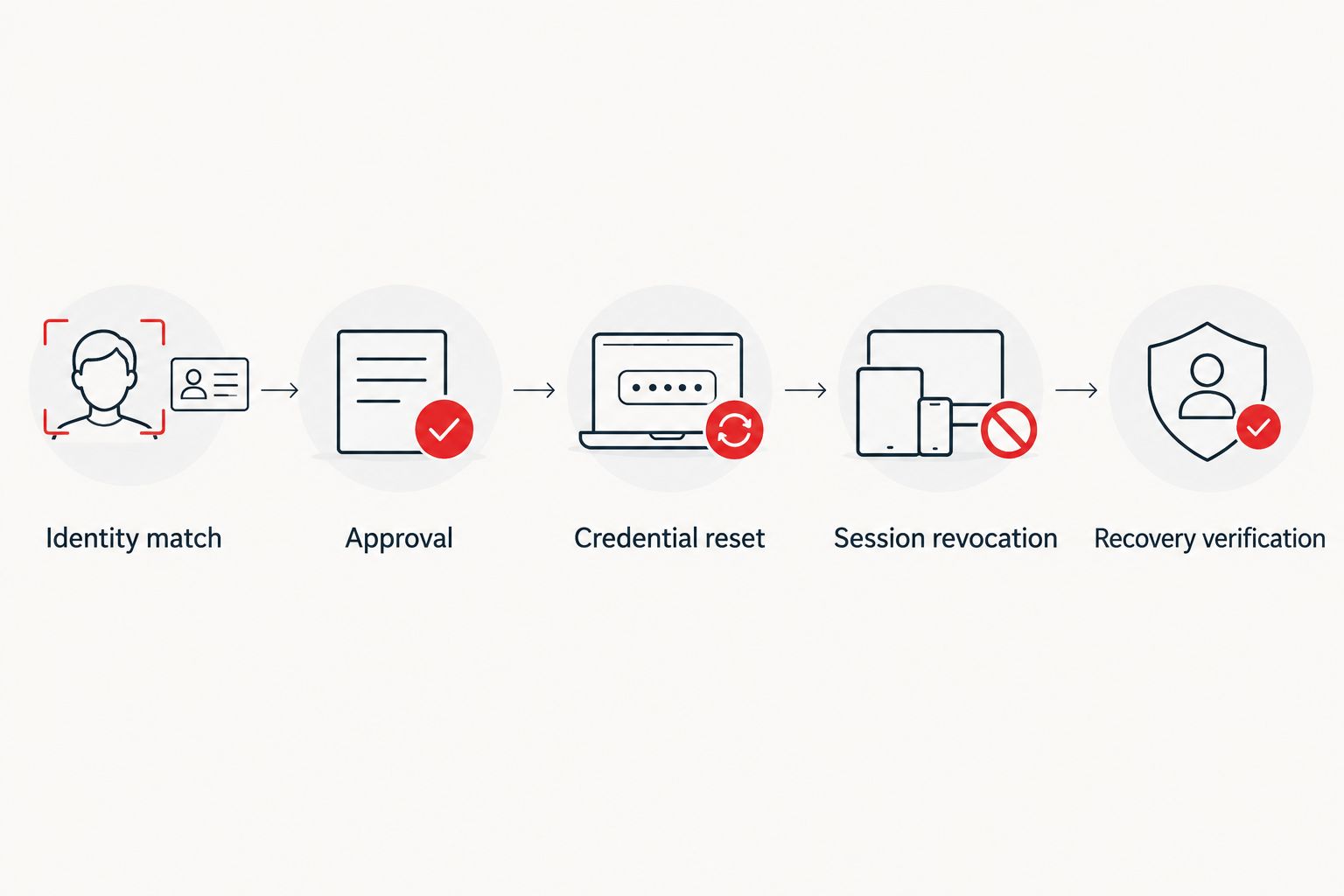
Keep the response reversible where appropriate. Document how the recovery owner restores legitimate access after containment and how employees reach support when their normal business account is unavailable.
Microsoft Entra containment and verification
Apply the approved account actions
Use this sequence for a cloud-managed Microsoft Entra user. For federated or synchronized identities, confirm the authoritative password-reset path before proceeding.
- Open the Microsoft Entra admin center. Go to Entra ID, then Users, then All users, and select the verified account. Confirm its user principal name against the case before changing anything.
- If approved containment requires blocking new sign-ins, open Properties, select Edit, and set Account enabled to No under Settings. Select Save. Preserve a record of the previous state for recovery.
- Select Reset password and complete the supported reset process. Deliver recovery instructions through a verified channel, not through the potentially compromised mailbox.
- Select Revoke sessions and confirm the action. Record the result separately from the password-reset result.
- Review authentication methods and relevant application access for unauthorized changes. Remove confirmed attacker-added methods through your approved process; do not indiscriminately delete legitimate recovery methods.
- If evidence indicates endpoint compromise, route the device to your endpoint-response process. Avoid having the employee establish a replacement credential on a device still under investigation.
Expected result: The account has the approved sign-in state, a documented credential action, and a separately documented session-revocation action. Remaining application or endpoint tasks stay open.
Microsoft Entra session revocation does not mean every application instantly terminates every active session. Access tokens and application-managed sessions have their own behavior. Check the applications involved instead of promising immediate universal logout.
Test the outcome before production use
- Use 1 nonprivileged test account with no production responsibilities. Confirm that the test user has a trusted recovery channel.
- Run 2 test cases: an exposure-only alert that requires review, and an approved containment case. These are validation exercises, not claimed service-performance figures.
- Confirm that the exposure-only case creates a ticket without changing account access. Verify that duplicate delivery updates the same case.
- For the containment case, verify each account action in the identity audit trail. Check new sign-in behavior and session behavior in the applications you actually use.
- Exercise recovery, including restoring the approved account state and verifying the employee's authentication methods. Record unexpected application behavior as a runbook exception.
Expected result: Your 2026 test record demonstrates both safe non-action and approved containment. A successful ticket submission alone does not pass the test.
When an existing exposure alert is updated
A second workflow should handle updated evidence without blindly resetting the same account again. An alert update can add a newly identified account, change the exposure classification, or provide evidence that changes the response decision.
- Locate the existing case using the stable alert reference. Preserve the original evidence and add the update with its receipt time.
- Compare the updated evidence with the previous version. Separate a repeated notification from a meaningful change.
- Re-run identity matching and response classification when the update changes the affected account or risk evidence. Do not reuse an old approval for a different identity.
- If the case was closed, reopen it when new evidence meets your reopening criteria. If no relevant evidence changed, record the duplicate without initiating another reset.
Expected result: New evidence advances the investigation, while repeated delivery does not create a cycle of unnecessary lockouts.
Troubleshooting
The alert matches multiple accounts
Stop the containment action. Check aliases, guest identities, historical usernames, and the source application's account records. Require an analyst to select the authoritative identity; a substring match is not sufficient authorization to disable a user.
The password-reset action fails
Check administrator permissions and the account's authentication source. A synchronized or federated account needs the supported authoritative reset path. Record the failure and escalate it; do not let the ticket report successful containment because another action completed.
The user still has application access
Check whether the application uses Microsoft Entra authentication or maintains its own credentials and sessions. Apply its documented session-termination process where supported. Keep the case open until relevant access paths are verified or unresolved limitations are explicitly escalated.
Alerts repeatedly lock out the same employee
Inspect deduplication, alert-update handling, and retry behavior. Make actions idempotent where the integration supports it: retrying an intake event should not trigger a fresh credential reset without a new decision. Separate delivery retries from response approvals.
Exposure returns after recovery
Investigate password reuse, unmanaged devices, stolen sessions, unauthorized authentication methods, and application-specific credentials. Repeating the reset without investigating the source does not resolve those conditions. Escalate confirmed compromise to incident response.
Customize your workflow
Extend the process beyond employees. Give service accounts an owner, dependency inventory, and credential-rotation procedure so containment does not silently break scheduled work. Include departed users and external identities in account review without granting them automatic recovery.
Connect the incident to endpoint response when the evidence justifies it. The guide to Microsoft 365 device lockdown workflows covers the adjacent device-containment topic; identity containment and device containment solve different problems.
Discovercybersolutions provides 24/7 incident response services alongside managed IT and cybersecurity. When choosing response coverage, specify who handles identity actions, endpoint investigation, employee verification, and unresolved application sessions. Request responsibilities in writing rather than assuming that monitoring includes every recovery task.
FAQ
What is a dark web monitoring credential reset workflow?
A dark web monitoring credential reset workflow turns an exposure alert into verified identity matching, a response decision, approved credential actions, and recovery checks. It connects monitoring to accountable action without treating every leaked address as a confirmed takeover.
Should every dark web alert automatically reset a password?
No, every dark web alert should not automatically reset a password. Historical records, ambiguous identity matches, and email-only exposures require assessment before disruptive actions.
Does resetting a Microsoft Entra password sign out every application?
A Microsoft Entra password reset is not a universal application sign-out guarantee. Perform the appropriate session-revocation action and verify application-specific session behavior separately.
What should I do when a privileged account appears in an exposure alert?
Escalate a privileged-account exposure through your approved incident-response process. Verify the identity and evidence, assess current activity, and use the privileged-account containment and recovery runbook.
Can a small business automate this process without a SOC?
A small business can automate alert intake and case routing without operating its own SOC. Disruptive identity actions still need authorized ownership, tested policies, and a response path for exceptions.
How do I know the credential incident is ready to close?
Close the credential incident only after the approved identity actions, relevant session checks, and recovery verification are documented. Keep unresolved endpoint or application-access issues open or transfer them to an explicitly owned incident.
What changes when the exposed account uses on-premises authentication?
Use the authoritative on-premises or federated identity system's supported credential-reset process. A cloud-directory action alone does not establish that the underlying credential or every connected session has been remediated.
One last thing
Test the case that must not trigger a reset. Your 2026 validation should include an ambiguous exposure report and confirm that the workflow stops at investigation. Safe automation needs proof that it refuses the wrong action, not just proof that it can execute the right one.