
Microsoft 365 tells you a device is out of compliance. It does nothing to stop that device from pulling data out of SharePoint five minutes later — unless you've built the workflow that connects the two. This guide sets up automatic lockdown for noncompliant devices inside Microsoft 365, using Intune compliance policies and Conditional Access as the enforcement layer.
- A microsoft 365 mobile device management workflow blocks noncompliant devices automatically via Intune compliance policies plus Conditional Access — no manual review needed.
- Conditional Access enforcement lags compliance evaluation by up to 8 hours in default sync cycles; force a check-in for immediate lockdown testing.
- Grace periods prevent false lockouts but also delay real containment — set them by risk tolerance, not convenience.
- Break-glass admin accounts must be excluded from the lockdown policy or you risk locking yourself out of Azure AD entirely.
Why this matters
A lost phone with an active Outlook session is a live data exfiltration risk the moment it leaves an employee's pocket. Manual device review — someone in IT checking a dashboard once a day — catches that risk hours or days too late. An automated Microsoft 365 mobile device management workflow catches it the moment the device fails its next compliance check.
Most small and mid-sized businesses running Microsoft 365 Business Premium or an E3/E5 tenant already own the licensing required for this. The gap isn't the tools. It's that nobody configured the policy chain that turns "device is noncompliant" into "device is blocked." Cyber Solutions builds this exact lockdown workflow for clients as part of managed endpoint protection, and the configuration below is the same chain used in those engagements.
Before you start
- Azure AD Premium P1 or higher (bundled in Microsoft 365 Business Premium and E3/E5) — Conditional Access requires it. Plans without it can't gate access on compliance state.
- Intune Administrator or Global Administrator role in the Microsoft 365 admin center, plus at least one enrolled test device to validate the policy before rolling it to the full tenant.
- The gotcha: if you don't exclude a break-glass admin account from the Conditional Access policy before you enable it, a misconfigured rule or an Azure AD outage can lock every admin — including you — out of the tenant. Create and exclude that account first, not after.
Set up your Intune compliance policy
This policy defines what "compliant" means. Everything downstream depends on getting these settings right the first time.
- In the Microsoft Intune admin center, go to Devices > Compliance policies > Policies > Create Policy.
- Select the platform (Windows 10/11, iOS/iPadOS, or Android Enterprise) — you'll need a separate policy per platform.
- Under Compliance settings, enable Require BitLocker (Windows) or Require encryption of data storage on device (mobile), set a minimum OS version, and turn on Rooted devices or Jailbroken devices = Block.
- If the tenant has Microsoft Defender for Endpoint connected, set Require the device to be at or under the machine risk score to Medium or Low depending on risk tolerance.
- Under Actions for noncompliance, add a Mark device noncompliant action with Schedule set to 0 days for immediate flagging, and add a second action to Send email to end user so they know why.
- Assign the policy to the relevant device or user group and click Create.
Expected result: within one sync cycle (up to 8 hours by default, or immediately on manual sync), any device failing these checks shows a status of Not compliant in the Intune device list.
Configure the Conditional Access lockdown rule
This is the piece that actually blocks access. The compliance policy only labels the device — Conditional Access enforces the consequence.
- In the Microsoft Entra admin center, go to Protection > Conditional Access > Policies > New policy.
- Name it clearly ("Block Noncompliant Devices — M365 Apps") — vague names cause confusion during incident response later.
- Under Assignments > Users, include All users, then exclude your break-glass admin account and any service accounts.
- Under Target resources, select Cloud apps, then choose Office 365 (or the specific apps you want covered: Exchange Online, SharePoint Online, Teams).
- Under Conditions > Device platforms, include the platforms your compliance policies cover.
- Under Access controls > Grant, select Require device to be marked as compliant, and set For multiple controls to Require all the selected controls.
- Set Enable policy to Report-only first, review the sign-in logs for 48-72 hours to confirm no legitimate users would be blocked, then switch to On.
Expected result: a device flagged noncompliant by Intune gets blocked from Office 365 apps on its next access attempt, with a clear "device not compliant" message shown to the user instead of a silent failure.
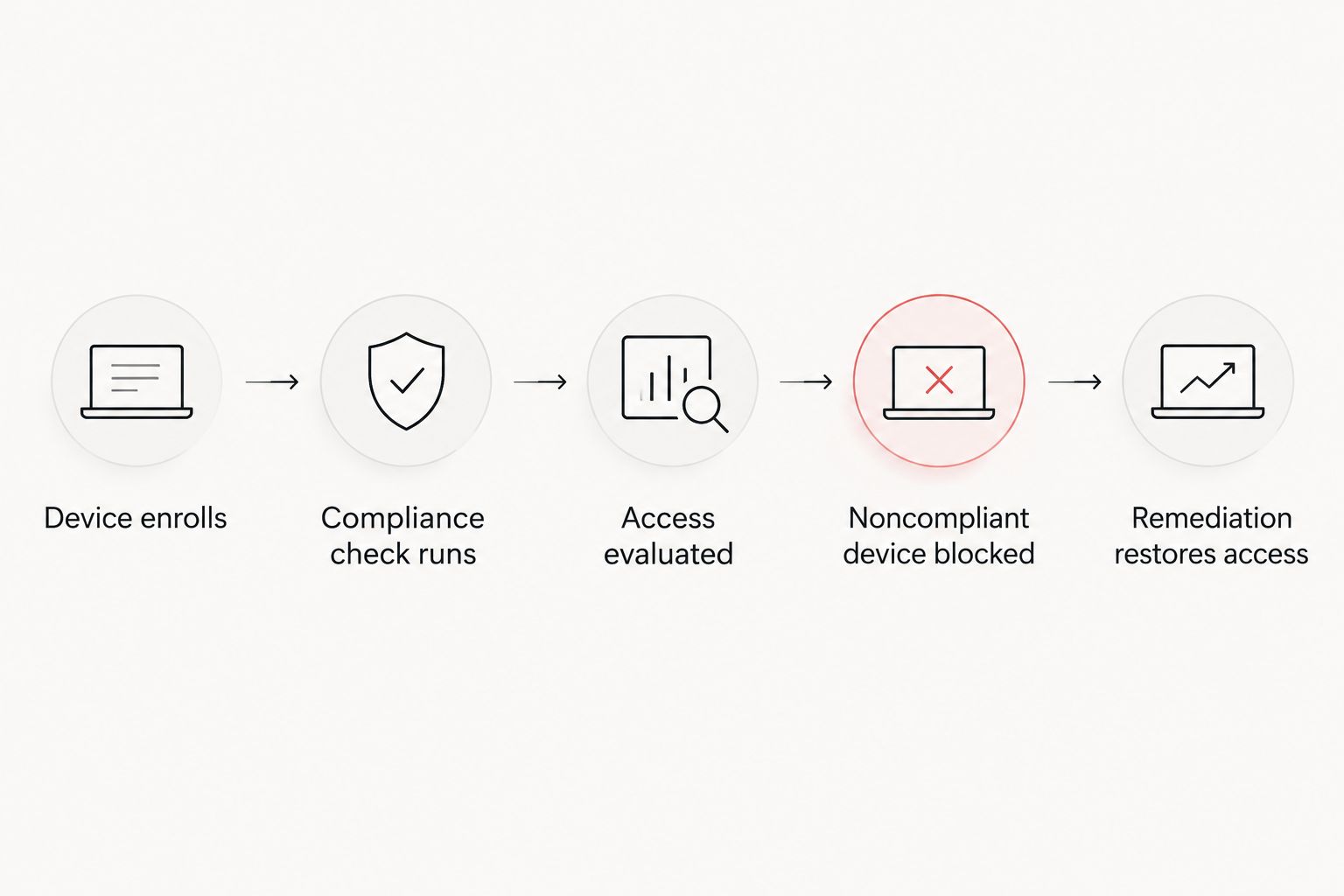
Auto-restore access when the device is fixed
A second, closely related workflow: restoring access automatically the moment a device becomes compliant again, without an IT ticket.
- Once a user remediates the issue (updates the OS, re-enables BitLocker, removes a jailbreak), have them trigger a manual sync from the Company Portal app.
- Intune re-evaluates the device against the compliance policy on that sync.
- If it passes, the device status flips to Compliant and Conditional Access grants access on the next sign-in attempt — no manual override needed.
- For a faster loop, set Actions for noncompliance to send a push notification through the Company Portal app pointing users directly to the fix.
This closes the loop end to end: block on failure, restore on remediation, no admin has to babysit either direction.
Troubleshooting
- Policy shows as On but devices aren't being blocked. Check that it's not still set to Report-only — this is the single most common misconfiguration in this workflow.
- Legitimate users get locked out immediately after a policy update. The 0-day grace period is too aggressive for a first rollout. Set a short grace period (1-3 days) via the noncompliance action schedule while users adjust.
- BYOD personal devices never enroll, so the policy has no effect on them. Personal devices need an app protection policy layered on top of MDM enrollment, or the compliance check never runs against them at all.
- Compliance status is stale for hours. The default check-in interval is up to 8 hours. Force Sync from the Intune admin center or the Company Portal app to test changes immediately instead of waiting.
- A locked admin account can't fix the lockout. This is why the break-glass exclusion in the setup step above is non-negotiable — build it before the policy goes live, not after an incident.
Customize your workflow
Once the base lockdown workflow is running, most SMB IT teams extend it in two directions: tightening the compliance bar with app-level controls, and layering risk-based Conditional Access on top of device state. If application-level restrictions (blocking copy-paste out of managed apps, restricting screen capture) matter for your compliance posture, review zero trust application control platforms that plug into this same Conditional Access chain.
If Intune alone isn't covering every device type in your fleet — especially mixed Windows/Mac/mobile environments — compare dedicated mobile device management solutions built for SMBs before assuming native Intune covers every gap.
The workflow above is what turns a compliance dashboard into an actual control — a device that fails the check loses access before anyone has to notice, act, or escalate.
Get this workflow built for your tenant
Cyber Solutions configures Intune and Conditional Access lockdown as part of managed endpoint protection.
FAQ
What licensing does this microsoft 365 mobile device management workflow require?
You need Azure AD Premium P1 or higher, which is included in Microsoft 365 Business Premium and E3/E5. Conditional Access, the enforcement layer, does not work on lower tiers.
How fast does Intune lock out a noncompliant device?
Compliance status updates on the device's check-in cycle, which defaults to up to 8 hours, or immediately if you force a manual sync. Conditional Access enforces the block on the device's next Microsoft 365 sign-in attempt after status changes.
Can a locked-out device unlock itself automatically?
Yes. Once the user fixes the compliance issue and triggers a sync, Intune re-evaluates the device and Conditional Access restores access on the next sign-in with no manual admin action.
Does this workflow cover personal BYOD phones?
Only if the device is enrolled in Intune or covered by an app protection policy. Unenrolled personal devices never get evaluated by the compliance policy, so the lockdown never triggers.
What happens if I misconfigure the Conditional Access policy?
A broad or incorrectly scoped policy can lock legitimate users, or even admins, out of the tenant. Always test in Report-only mode for 48-72 hours and exclude a break-glass admin account before turning it on.
Is Intune enough, or do I need separate MDM software?
Intune covers most standard SMB device fleets on its own. Mixed environments with heavy Mac, Linux, or legacy device use sometimes need dedicated mobile device management software layered alongside it.
Should the grace period be 0 days or longer?
Zero days gives the fastest containment but risks false lockouts on a first rollout. Most SMBs run a 1-3 day grace period during initial deployment, then tighten it to 0 once the policy is stable.
One last thing
The compliance policy and the Conditional Access rule are two separate objects in two separate admin centers — Intune and Entra — and neither one alerts you when the other one is misconfigured. The most common failure in 2026 tenant audits isn't a missing policy. It's a Conditional Access rule stuck in Report-only for months because nobody circled back to flip it On after the initial test window.