
Most IT teams find out about an outage when a client calls the helpdesk, not when a monitor fires. Wire your NOC alerts directly into the helpdesk queue and every flagged event becomes a prioritized ticket before a human ever picks up the phone.
- Helpdesk NOC integration turns monitoring alerts into helpdesk tickets automatically, cutting the gap between detection and response.
- Map severity levels to ticket priority before you build the webhook, or every alert lands in the same queue.
- Cyber Solutions runs this pattern across managed accounts to hit sub-hour response on flagged incidents in 2026.
- Test with a synthetic alert before going live so field mapping errors don't silently drop tickets.
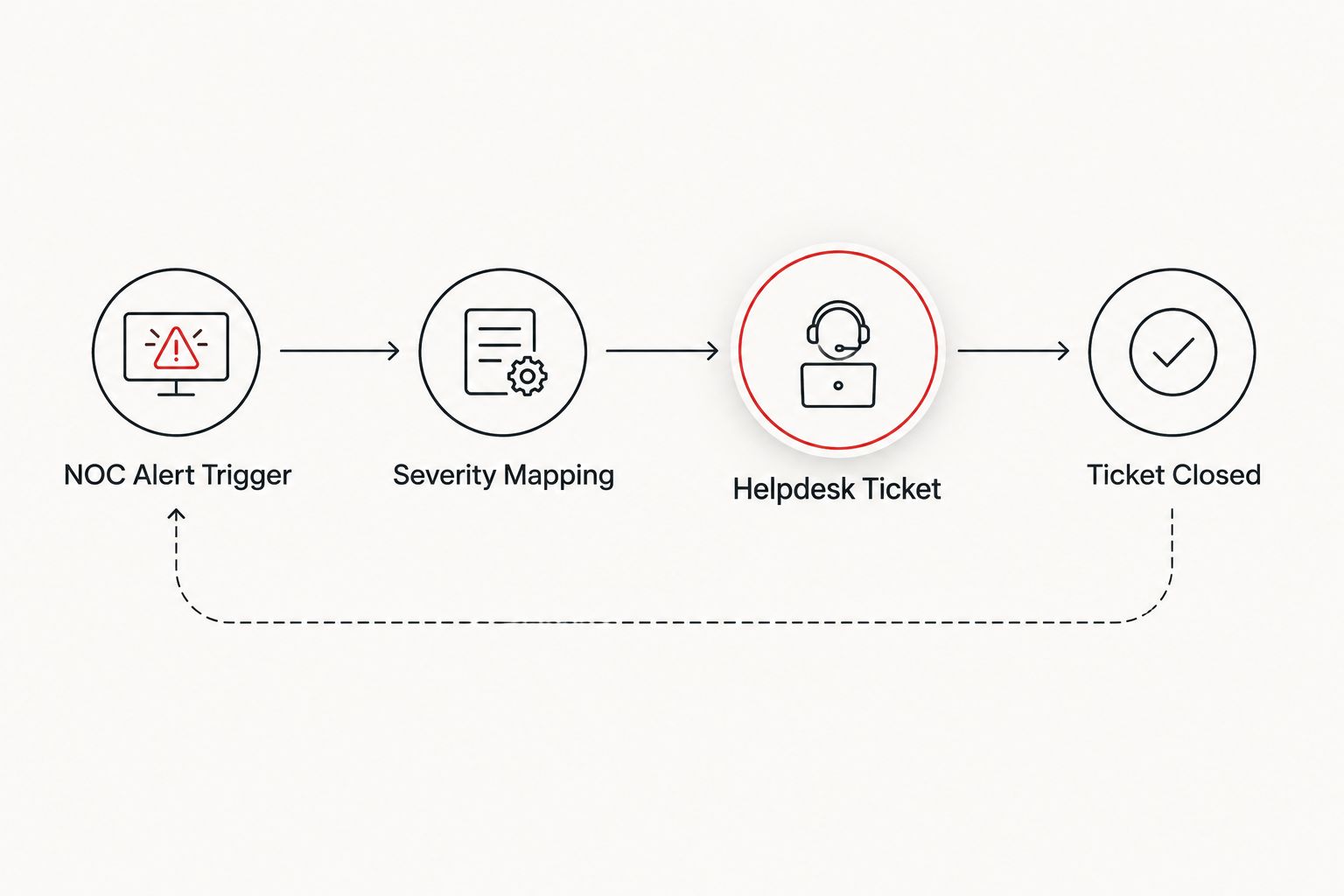
- Closed-loop status sync (ticket closed = alert cleared) is the second half of the workflow most teams skip.
Why this matters
A monitoring platform that fires an alert nobody acts on is a false sense of security. If your network operations center (NOC) tooling and your helpdesk platform live in separate silos, alerts sit in a dashboard while tickets sit in a queue, and the two never talk.
Helpdesk NOC integration closes that gap. A CPU spike, a failed backup job, or a device going offline creates a ticket automatically, with severity, device name, and site already populated. No technician has to eyeball a monitoring console and manually open a ticket at 2 a.m.
For businesses that run on 24/7/365 coverage, this is not optional infrastructure — it's the difference between an alert triaged in minutes and one discovered the next morning. Cyber Solutions builds this integration as standard for 24/7 IT helpdesk accounts because a monitored network with no ticket automation is still a manual process wearing a dashboard.
Before you start
- Admin credentials on both platforms. You need API or webhook-generation rights on your NOC/RMM tool and admin access to create custom fields on the helpdesk side.
- A severity-to-priority map drafted on paper first. Decide how Critical, Warning, and Informational alerts translate to P1/P2/P3 tickets before you touch a config screen.
- The gotcha: most helpdesk platforms auto-assign a default technician on ticket creation. If you don't override that field in the trigger, every NOC-generated ticket lands on one person's queue regardless of who's on shift — a problem that doesn't surface until the on-call rotation changes.
Set up your NOC alert trigger
- In your NOC/RMM platform's alert settings, open Alert Templates or Notification Rules.
- Select the alert types you want forwarded — start narrow (device offline, disk space critical, backup failure) rather than forwarding every informational log line.
- Add a new Webhook action under the alert's response settings and paste the endpoint URL your helpdesk platform generates (see next section).
- In the payload builder, include device name, site ID, severity, and timestamp as variables — these become the ticket fields.
Expected result: triggering a test alert in the NOC console shows a successful webhook POST (green checkmark or 200 response) in the platform's delivery log.
Configure the helpdesk API endpoint
- In your helpdesk platform, go to Settings > Integrations > API and generate a new API key scoped to ticket creation only — not full admin access.
- Create a Ticket Template dedicated to NOC-originated tickets, with custom fields for Device, Site, and Alert Severity.
- Set the default Queue for this template to your monitoring/NOC queue, not the general support queue, so it doesn't compete with client-submitted tickets.
- Copy the resulting webhook URL from the template and paste it back into the NOC trigger from the step above.
Expected result: the ticket template shows in your queue list and generates a ticket number when tested manually from the API console.
Map severity to priority
- Open your priority mapping settings and build the table you drafted before starting.
- Assign Critical alerts to P1 with a response SLA, Warning to P2, and Informational to P3 or a monitoring-only tag that doesn't page anyone.
- Confirm the mapping applies automatically on ticket creation, not as a manual field a technician sets after the fact.
| Alert severity | Ticket priority | Typical response target |
|---|---|---|
| Critical (device down, backup failed) | P1 | Under 1 hour |
| Warning (disk space, CPU sustained high) | P2 | Same business day |
| Informational (patch pending, log notice) | P3 / no page | Next business cycle |
Expected result: a test Critical alert generates a P1 ticket without a technician touching the priority field.
Test the connection
- Trigger a synthetic alert from the NOC platform (most tools have a Test Alert or Simulate button).
- Confirm a ticket appears in the correct queue within seconds, with device, site, and severity fields populated — not blank.
- Confirm the assigned technician matches whoever is actually on shift, not a hardcoded default.
- Run one test per severity tier so you catch mapping errors before a real Critical alert gets misfiled as informational.
A ticket that sits unassigned in the queue for six hours because of a broken field map is functionally no different from having no monitoring at all.
“A ticket that sits unassigned in the queue for six hours is functionally no different from having no monitoring at all.”
Route resolved tickets back to the NOC dashboard
The reverse workflow matters as much as the forward one. Whenever a technician closes a ticket, the NOC dashboard should clear the corresponding alert automatically instead of leaving a stale red flag on the monitoring console.
- In the helpdesk platform, add a Ticket Closed trigger under automation rules.
- Configure it to fire a callback to the NOC platform's API, passing the original alert ID stored in the ticket's custom field.
- In the NOC platform, map that callback to an Acknowledge/Clear action on the matching alert.
Expected result: closing the ticket clears the alert from the live dashboard within a minute, so the console reflects real open issues, not resolved noise from three days ago.
Troubleshooting
- Duplicate tickets for one alert. Usually caused by the NOC platform retrying a webhook that timed out but actually succeeded. Set a shorter timeout window on the helpdesk API and enable deduplication on the alert ID field.
- Tickets stuck in "New" status. Check that the priority mapping rule fires before the assignment rule — some platforms process automation rules in a fixed order and skip assignment if priority isn't set first.
- Missing device or site data on the ticket. The webhook payload variables weren't mapped correctly in the NOC trigger — go back and confirm each field name matches exactly, including case sensitivity.
- Wrong technician assigned overnight. The default assignment rule needs an on-call schedule variable, not a static name — most helpdesk platforms support a rotation lookup for this.
- Alerts flapping and flooding the queue. Add a suppression window (5-15 minutes) on the NOC side so a device that goes up and down repeatedly doesn't generate a new ticket every cycle.
Not sure your NOC setup is even monitoring the right things?
Get an assessment of your current monitoring and helpdesk stack.
Customize your workflow
Once the base integration is stable, extend it. Route endpoint alerts from your EDR platform through the same pipeline — the ThreatLocker-to-SOC alert workflow follows the same trigger-and-map pattern and can feed the same helpdesk queue.
If you're running your own SIEM tooling alongside NOC monitoring, the same webhook logic applies — just add a second trigger source into the ticket template you already built. Businesses evaluating whether to build this in-house or hand it to a managed SOC-as-a-service provider should weigh the ongoing maintenance of field mappings against the cost of outsourcing the whole pipeline — mappings break every time either platform pushes a UI update.
Verdict: helpdesk NOC integration is worth building in 2026 for any team running more than one monitored site — the setup takes an afternoon, and the payoff is every Critical alert becoming a tracked, assigned, SLA-bound ticket instead of a red dot on a dashboard nobody's watching at 2 a.m.
FAQ
What is helpdesk NOC integration?
Helpdesk NOC integration is the automated connection between network monitoring alerts and a helpdesk ticketing system, so a flagged issue creates a prioritized ticket without manual entry. It typically uses a webhook from the NOC platform to the helpdesk's API.
Do I need a specific helpdesk platform for this to work?
No. Most modern helpdesk platforms (ConnectWise, Autotask, Freshservice, Zendesk, ServiceNow) support webhook-based ticket creation through their API settings. The steps are similar across platforms even if menu names differ.
How long does it take to set up helpdesk NOC integration?
A basic integration covering trigger setup, severity mapping, and testing typically takes a single working session once you have admin access on both platforms. Closed-loop status sync adds a bit more configuration time.
What happens if the severity mapping is wrong?
Alerts get miscategorized as the wrong ticket priority, which means Critical issues can end up in a low-priority queue with no SLA attached. Testing each severity tier before going live catches this before it affects a real incident.
Can closed tickets automatically clear NOC alerts?
Yes, with a callback rule: closing the ticket in the helpdesk fires an API call back to the NOC platform to acknowledge or clear the matching alert. This keeps the monitoring dashboard showing only genuinely open issues.
Is 24/7 monitoring the same as helpdesk NOC integration?
No. 24/7 monitoring means someone is watching alerts around the clock; helpdesk NOC integration is the automation layer that turns those alerts into tracked, assigned tickets instead of relying on a person to manually open one.
What's a common failure point in this setup?
Default technician assignment fields are the most common failure point — if the trigger doesn't reference an on-call schedule, every ticket lands on one person regardless of shift, which surfaces only after the rotation changes.
One last thing
The integration itself is the easy half. The part teams skip is the closed-loop clear-on-close step, which means dashboards fill up with stale alerts for issues that were already fixed days ago — and a stale dashboard trains technicians to stop trusting it, which defeats the entire point of building this in 2026.