
When ThreatLocker blocks something, that event sits in a log until a human opens the portal. Instead of a technician checking Unified Audit every few hours, wire ThreatLocker's alert stream into your SOC so a blocked execution, a Ringfencing violation, or a suspicious Elevation Request triggers automatic containment in minutes, not the next business day.
- ThreatLocker SOC integration forwards Unified Audit and Detect events via Syslog so a SOC analyst or automated playbook can isolate a host the moment it misbehaves.
- The non-obvious setup trap: ThreatLocker's default SIEM feed sends allowed activity too, which floods a SOC queue unless you filter to denials, Ringfencing violations, and Detect alerts.
- ThreatLocker Detect's built-in Isolate action beats waiting on a SIEM correlation rule when speed matters more than a human review step.
- Elevation Request abuse (a user repeatedly requesting admin rights) deserves its own alert path separate from application-block alerts.
- Cyber Solutions runs this exact pipeline across managed SOC clients in 2026, with under 1 hour average response once an alert lands.
Why this matters
ThreatLocker's default-deny model already stops most execution-based attacks before they run. The gap is speed of response after a block fires — a Ringfencing violation on a finance workstation at 11pm on a Saturday means nothing if the SOC doesn't see it until Monday.
A ThreatLocker SOC integration closes that gap by treating every meaningful ThreatLocker event as a trigger, not a log line. That's the difference between application control that just says no and application control that actively contains the device the moment something abnormal happens. Businesses running zero-trust application control platforms get the most value out of this pairing because the deny events are already high-signal — ThreatLocker rarely blocks legitimate software once policies are tuned.
Before you start
- ThreatLocker Ops or Detect license with admin console access — Unified Audit alone gives you logs; Detect adds the automated Isolate action referenced in step 3.
- A SOC or SIEM that accepts Syslog or webhook input — most SIEM tools built for small and mid-sized businesses support this natively; confirm your receiver's listening port before you touch ThreatLocker's side.
- The gotcha that bites at step 3, not step 1: ThreatLocker's default SIEM export sends every audit event, including approved activity. If you don't scope the event types before forwarding, your SOC gets buried in noise within the first 24 hours and analysts start ignoring the feed — which defeats the entire point of automating containment.
Configure ThreatLocker alert forwarding
- In the ThreatLocker portal, go to Settings and open the SIEM Integration tab.
- Enter your SOC's receiver address under Syslog Server and set the Port and Protocol (TCP or UDP) to match what your SIEM expects.
- Under Event Types, deselect Allowed and Permitted activity — leave only Denied, Ringfencing Violation, and Elevation Request checked.
- Click Save and use the Send Test Event button to confirm the connection.
Expected result: a test event appears in your SIEM's ingest log within a minute or two. If nothing shows up, the port or firewall rule is the first thing to check, not the ThreatLocker configuration.
Connect the SOC to ingest and parse ThreatLocker events
- In your SIEM, create a new log source or data connector and select Syslog as the input type, pointing to the port you configured above.
- Map the incoming fields — hostname, policy name, application path, and event type — to your SIEM's schema so alerts display readable device and policy names instead of raw JSON.
- Build a saved search or correlation rule that filters for
event_type = Deniedorevent_type = Ringfencing Violationand set it to fire a notification, not just log the event. - Run a live test: block a test application on a lab endpoint and confirm the alert reaches the SOC's queue within your SIEM's normal ingest latency.
Expected result: a real ThreatLocker denial shows up in the SOC console with the device name, the blocked file path, and a timestamp — not a raw syslog string.
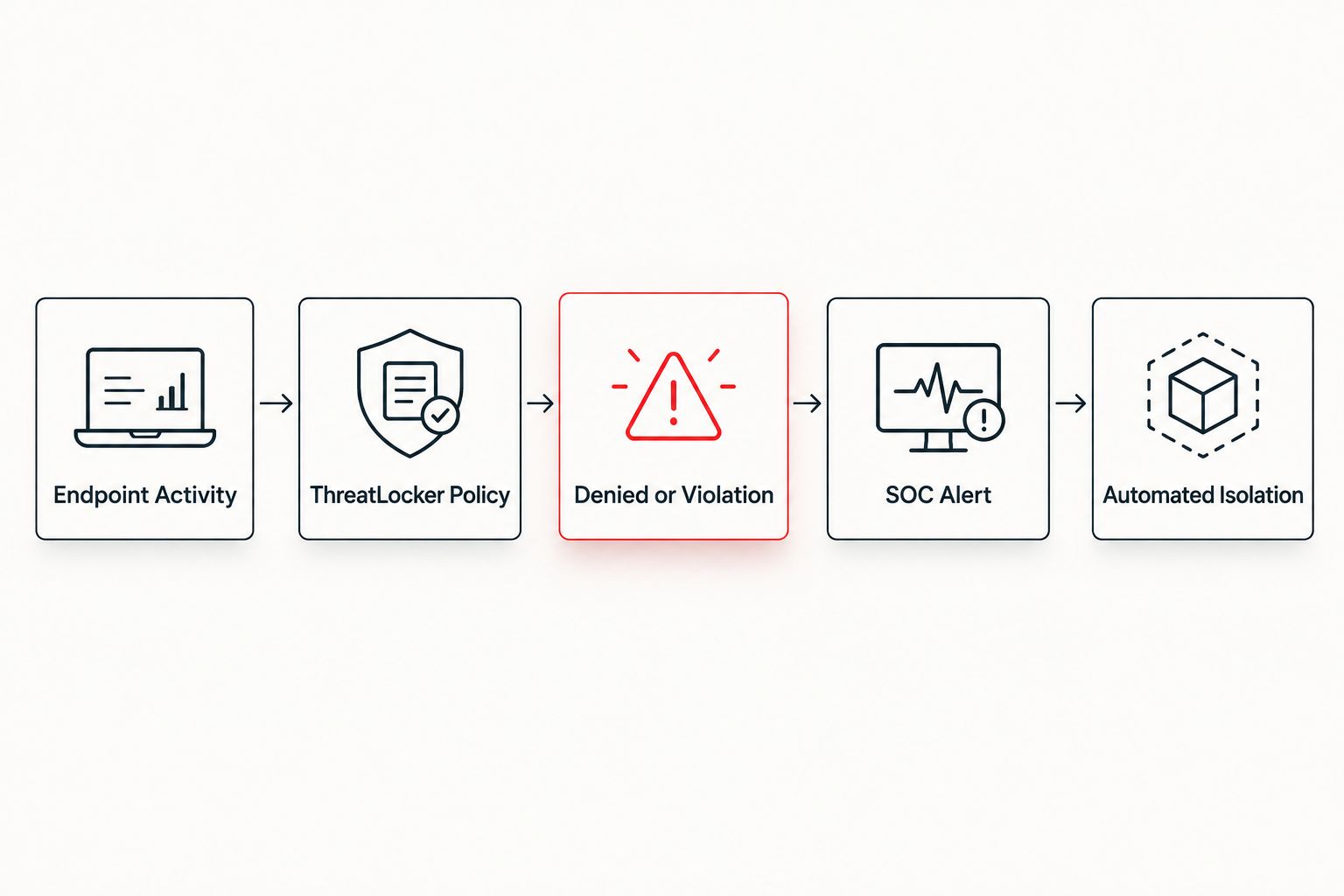
Build the automated containment playbook
- In your SIEM or SOAR tool, create a playbook or automated response rule triggered by the correlation rule from the previous section.
- Configure the action to call ThreatLocker's API endpoint for Isolate Device, passing the hostname captured from the alert payload.
- Set a severity threshold — for example, trigger automatic isolation only on repeated denials from the same host within a short window, and route single one-off blocks to a human analyst queue instead.
- Add a notification step (email, Slack, or ticket creation) so the SOC team knows a device was isolated automatically and can start the response process.
Expected result: a device that trips the threshold gets network-isolated by ThreatLocker within the same alert cycle, before a technician has opened a ticket.
Second workflow: contain elevation abuse separately
Elevation Request abuse — a user or process repeatedly requesting admin rights ThreatLocker's Elevation Control would normally deny by policy — deserves its own trigger path instead of sharing a threshold with application blocks. Repeat elevation requests from the same account in a short window are a stronger privilege-escalation signal than a single blocked executable.
- Repeat the Configure ThreatLocker alert forwarding steps above, but filter Event Types to include only Elevation Request.
- Build a separate correlation rule with a lower threshold (2-3 requests within 10 minutes is a reasonable starting point for most small businesses in 2026).
- Route this alert to a higher-priority queue than standard application blocks — elevation abuse often correlates with an active compromise, not a misconfigured app.
This pairs well with the reasoning behind endpoint protection software choices: application control and EDR catch different stages of the same attack, and elevation abuse usually shows up between the two.
Troubleshooting
- Events aren't reaching the SIEM. Check the firewall rule on the SOC's receiving server first — outbound syslog traffic from ThreatLocker's cloud console has to be allowed inbound on the port you configured.
- The SOC queue is flooded with noise. Go back to the Event Types filter and confirm Allowed/Permitted activity is unchecked; this is the single most common misconfiguration in this workflow.
- Automatic isolation fires on false positives. Raise the severity threshold in the playbook and add a secondary confirmation step (a second denial type, or a specific policy name) before the Isolate action runs.
- API calls to Isolate Device fail. Confirm the API key used in the playbook has the correct scope and hasn't expired — ThreatLocker API keys tied to a single admin account break when that account's password changes.
- Alerts arrive but with no device name. The field mapping step in the SIEM connector was skipped or mismatched; recheck the hostname field against ThreatLocker's payload schema.
Customize your workflow
Once denial and elevation alerts route automatically, extend the same pattern to device-level lockdown triggered from your MDM platform, similar to the Microsoft 365 to automatic device lockdown workflow. Businesses evaluating whether to run this in-house or hand it to a managed provider should also look at SOC-as-a-service providers built for small businesses before committing engineering hours to building and maintaining the playbook internally.
ThreatLocker SOC integration is the right move for any business running application control that wants denial events acted on in minutes instead of reviewed the next day — that's the sentence to remember if you take one thing from this guide.
Get this pipeline built for you
400+ businesses run this exact SOC workflow with Cyber Solutions monitoring 24/7/365.
FAQ
What is ThreatLocker SOC integration?
It's the practice of forwarding ThreatLocker's Denied, Ringfencing Violation, and Elevation Request events to a SOC or SIEM so an analyst or automated playbook can contain the device instead of waiting for a manual portal review.
How does ThreatLocker send alerts to a SOC?
ThreatLocker forwards events over Syslog through its SIEM Integration settings, configured with your receiver's IP address, port, and protocol. Filter event types before forwarding or the SOC queue fills with allowed-activity noise.
Can ThreatLocker automatically isolate a device?
Yes, ThreatLocker Detect includes an Isolate Device action that a SIEM or SOAR playbook can call via API when a threshold of suspicious events is met. Ops-only licenses require the SOC's own SOAR to trigger network isolation.
What's the difference between ThreatLocker Ops and Detect for this integration?
Ops covers application control, Ringfencing, and Elevation Control logging; Detect adds behavioral alerting and the built-in Isolate action referenced in the automated containment playbook above.
Does forwarding ThreatLocker alerts to a SIEM cost extra?
Cost depends on your ThreatLocker license tier and SIEM platform, so check current terms directly with ThreatLocker and your SIEM vendor rather than assuming a flat rate.
How fast can a SOC contain a threat flagged by ThreatLocker?
With an automated playbook in place, isolation happens within the same alert cycle the correlation rule fires on — under 1 hour average response is realistic for a properly tuned setup in 2026.
Is ThreatLocker better than CrowdStrike for automated containment?
ThreatLocker's default-deny model prevents unknown execution before it runs, while CrowdStrike focuses on behavioral detection after execution; many SOCs run both and route alerts from each into the same containment pipeline.
What SIEM tools work best with ThreatLocker?
Any SIEM that accepts standard Syslog input works, since ThreatLocker's SIEM Integration exports in that format rather than requiring a proprietary connector.
One last thing
The elevation-request path gets ignored more than any other part of this setup because it looks like a minor annoyance alert, not a security event — but repeated elevation requests from one account in a short window is one of the earliest signals of an account already in an attacker's hands, and it shows up before most EDR tools flag anything at all in 2026.