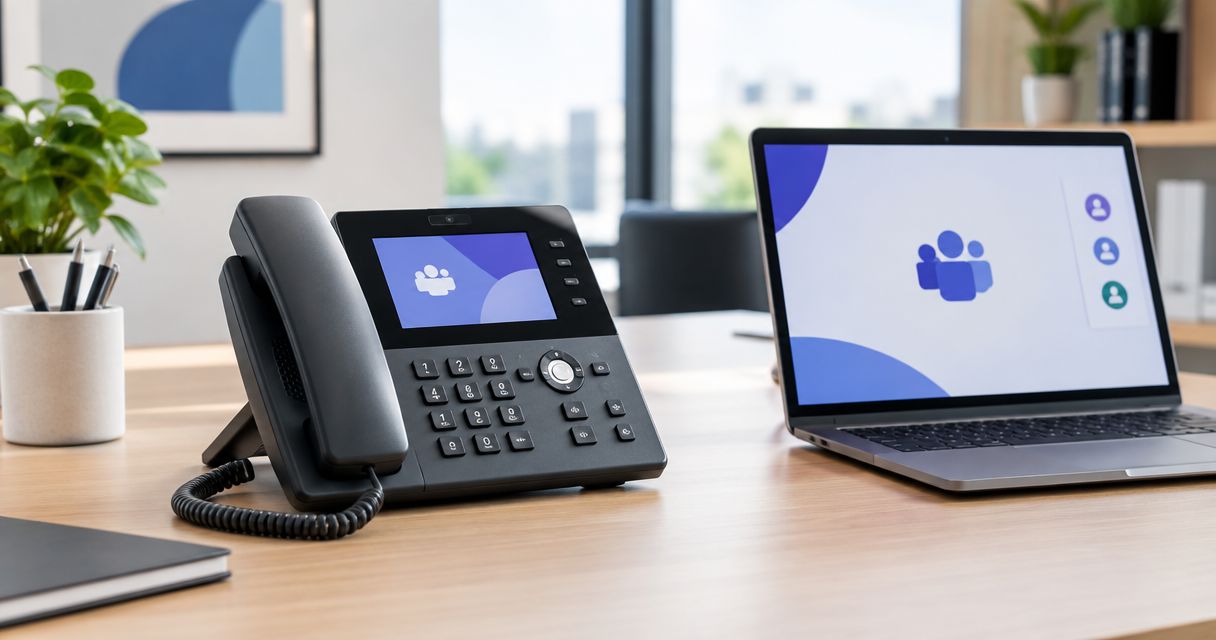
Manually keeping a separate desk phone directory in sync with your Microsoft Teams roster means updating two systems every time someone joins, leaves, or changes extensions. Connect Yealink phones to Microsoft Teams once, and Teams Admin Center pushes the dial plan, contacts, and firmware to every handset automatically — the desk phone becomes just another Teams endpoint instead of a separate system to babysit.
- Connect Yealink phones to Microsoft Teams by flashing Teams-certified firmware first — Skype for Business firmware will not sign in.
- A Teams Phone license (or Common Area Phone license for shared devices) is required before any Yealink handset can register.
- Common area phones skip the personal sign-in flow entirely and provision through Teams Admin Center's device tag system.
- Most failed sign-ins in 2026 trace back to outdated firmware or a missing Calling Plan/Direct Routing assignment, not a broken phone.
Why this matters
A Yealink handset that isn't tied into Teams is a dumb extension: no presence, no click-to-dial from Outlook, no call history syncing across devices. Firms running a business VoIP phone system alongside Teams end up paying for two calling stacks and training staff on two interfaces.
Once a Yealink phone registers as a native Teams device, the extension, voicemail, and call routing all live in the Teams Admin Center. IT changes one record instead of touching the phone, Teams, and a PBX console separately. That matters most for firms with 10-50 seats where nobody has a full-time phone administrator on staff.
Before you start
- Microsoft 365 tenant with Teams Phone enabled — a Teams Phone Standard license (or Teams Phone with Calling Plan/Direct Routing/Operator Connect) assigned to each user, or a Common Area Phone license for shared/lobby devices.
- A Yealink model on Microsoft's Teams-certified device list (T5 series, MP5x series, CP965, or newer) with network access to Microsoft 365 endpoints — most firmware and Teams traffic gets blocked by strict outbound firewall rules, so confirm ports 443 and 3478-3481 are open before provisioning.
- The gotcha: Yealink phones ship from the factory with generic or Skype for Business firmware. If you skip the firmware step and try to sign in anyway, the phone will loop on "Sign in required" forever — it looks like a credentials problem but it's a firmware problem. Flash the phone before you touch the sign-in screen.
Get Microsoft 365 ready for Yealink provisioning
- In the Microsoft 365 admin center, confirm the user (or resource account for a shared phone) has a Teams Phone Standard license and a calling method — Microsoft Calling Plan, Direct Routing, or Operator Connect — assigned under Licenses and Apps.
- Open the Teams Admin Center and go to Voice > Phone numbers. Assign a number to the user or resource account if one isn't already attached.
- Under Voice > Calling Policies, confirm the assigned policy allows the calling features you need (call transfer, call park, PSTN calling).
Expected result: the user's account shows an active phone number under Teams Admin Center > Users, and a test Teams desktop call to that number rings successfully before the physical phone is even touched.
Flash Yealink phones with Teams-certified firmware
- Connect the Yealink phone to the network with an Ethernet cable (Wi-Fi models still need Ethernet for the first provisioning pass on most firmware versions).
- On the phone, go to Menu > Settings > Advanced Settings and enter the admin password (the default is printed on the underside of the unit unless it's been changed).
- Navigate to Firmware and check the current version against Yealink's published Teams-certified firmware list for the model. If the version doesn't match, download the correct .rom file from Yealink's support portal.
- Upload the firmware via the phone's web interface (browse to the phone's IP address, log in as admin, go to Upgrade > Manual Upgrade, and select the file) or push it through Yealink's Redirection and Provisioning Service (RPS) if you manage more than a handful of devices.
- Let the phone reboot fully — this takes 3-5 minutes and the phone will restart on its own once.
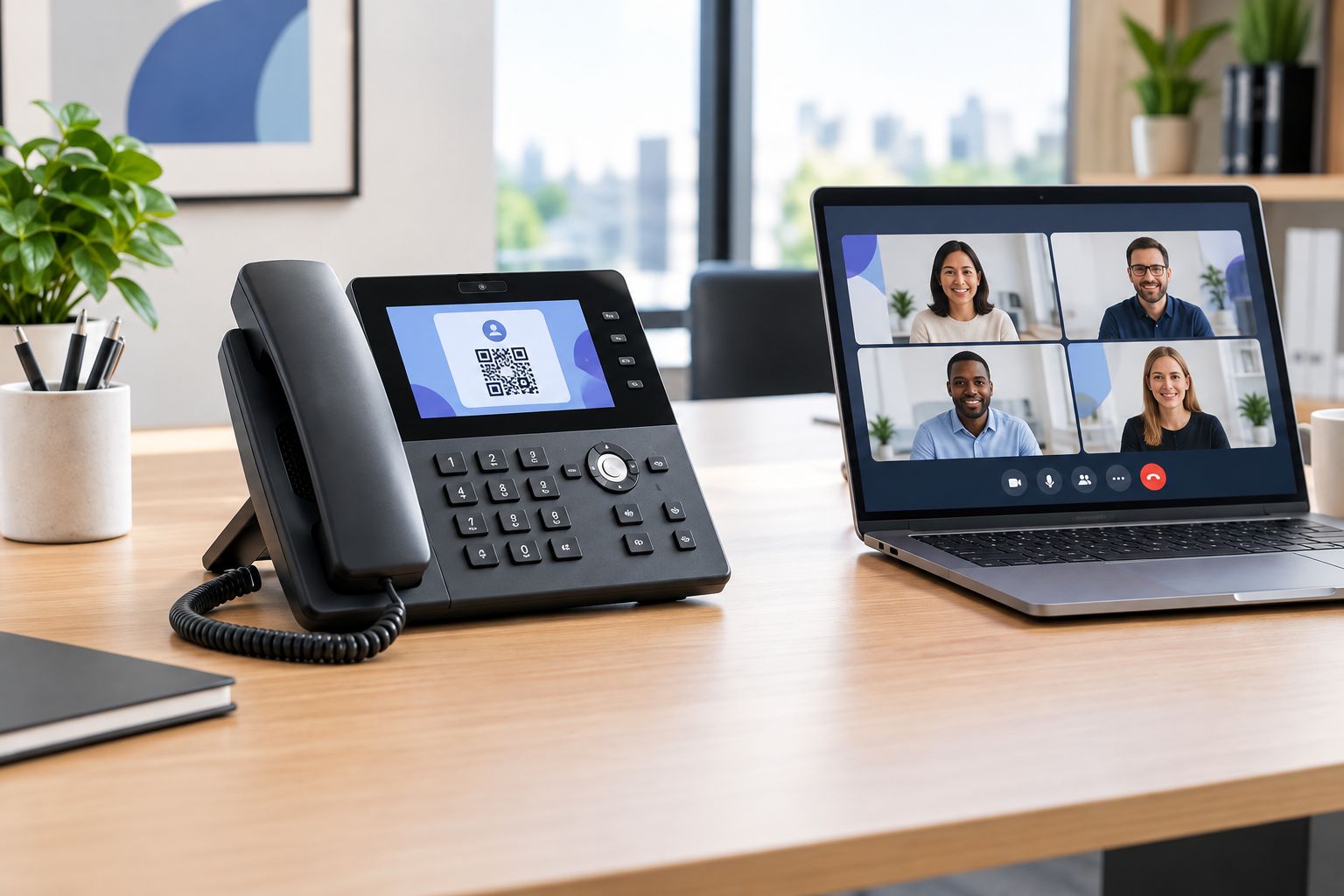
Expected result: the phone boots to a Sign in to Teams screen with a QR code and a short alphanumeric code, not the old Yealink or Skype for Business dial screen.
Sign the Yealink phone into Microsoft Teams
- On the phone's sign-in screen, note the code displayed, then go to microsoft.com/devicelogin on any browser and enter it.
- Sign in with the user's Microsoft 365 credentials (or the resource account credentials for a shared phone) when prompted.
- Once authentication completes, the phone screen updates automatically — no further action needed on the device itself.
- Confirm the phone shows the user's name and extension in the top corner of the home screen.
Expected result: placing a test call from the phone rings out over the assigned Teams number, and an inbound call to that number rings the physical phone.
Set up common area phones (shared devices, no personal login)
Lobby phones, warehouse extensions, and conference room lines don't belong to one person, so skip the personal sign-in flow entirely.
- Create a resource account in Microsoft 365 admin center under Active users, assign it a Common Area Phone license and a phone number.
- In Teams Admin Center > Devices > Phones, create a configuration profile with the settings this device needs (screen timeout, ringtone, display language).
- Sign the phone into the resource account using the same device login code method above.
- Under Devices > Phones, tag the device with the configuration profile so future settings changes push without touching the physical handset.
Expected result: the phone rings for the shared extension and stays signed in indefinitely — no individual employee's credentials are tied to the device.
Troubleshooting
- Phone stuck on "Sign in required" after firmware update: the firmware flash didn't complete, or an outdated cached firmware file was uploaded. Re-download the current file from Yealink's portal and re-flash.
- Device login code expires before you finish entering it: codes expire in about 15 minutes. Restart the sign-in process on the phone to generate a fresh one rather than retyping an old code.
- Phone registers but can't make outbound PSTN calls: the user's license has Teams Phone Standard but no calling plan, Direct Routing trunk, or Operator Connect assignment. Check Voice > Phone numbers in Teams Admin Center.
- Provisioning works on one phone but fails at scale across a dozen units: manual per-device flashing doesn't scale past a handful of phones — set up Yealink's Redirection and Provisioning Service (RPS) so new phones pull firmware and config automatically on first boot.
- Calls drop or audio cuts out intermittently: usually a network QoS issue, not a Teams or Yealink configuration problem — check that voice traffic is tagged and prioritized on the LAN, especially over VPN or SD-WAN links.
“If the phone loops on Sign in required after a firmware update, the device shipped with Skype for Business firmware, not Teams firmware.”
If none of these fixes land and the phones are down during business hours, that's the point where a 24/7 IT helpdesk support team earns its keep — phone outages cost more the longer they run past the first hour.
Customize your workflow
Once Yealink phones connect to Microsoft Teams cleanly, expand the setup instead of leaving it static:
- Push firmware updates automatically on a schedule through RPS rather than manually re-checking versions every quarter.
- Pair device provisioning with your broader endpoint policy — the same automated-provisioning logic that gets Yealink phones onto Teams applies to laptops and mobile devices through a Microsoft 365 to automatic device lockdown MDM workflow.
- Set calling policies per department so sales gets external transfer rights and back-office extensions don't.
Get phones and IT working as one system
Cyber Solutions handles Teams voice rollouts as part of managed IT support.
FAQ
What's the best way to connect Yealink phones to Microsoft Teams in 2026?
Flash the phone with Yealink's Teams-certified firmware first, then sign it in using the device login code at microsoft.com/devicelogin. Skipping the firmware step is the most common reason the sign-in screen never appears.
Do Yealink phones need special firmware to work with Teams?
Yes. Phones shipped for Skype for Business or generic SIP use will not display a Teams sign-in screen until Yealink's Teams-certified firmware is manually flashed or pushed via RPS.
Can a Yealink phone work with Teams without a Calling Plan?
The phone can sign in and make internal Teams calls without a calling plan, but outbound PSTN calls require a Microsoft Calling Plan, Direct Routing trunk, or Operator Connect assignment on the license.
What's the difference between Teams Phone and Direct Routing for Yealink devices?
Teams Phone with Calling Plan routes PSTN calls through Microsoft directly, while Direct Routing connects Teams to a third-party SIP trunk or existing carrier. Both work with the same Yealink Teams-certified firmware.
Why won't my Yealink phone sign into Microsoft Teams?
The most common causes are outdated firmware, a device login code that expired before entry, or a user account missing a Teams Phone license. Check firmware version first since it blocks the sign-in screen entirely.
Can multiple Yealink phones be provisioned automatically for a common area?
Yes. Create a resource account with a Common Area Phone license, build a configuration profile in Teams Admin Center, and tag each device to that profile so settings push without manual reconfiguration.
Is Yealink better than Poly for Microsoft Teams?
Both brands ship Microsoft-certified Teams firmware and integrate the same way through Teams Admin Center. The choice usually comes down to specific model features and existing hardware inventory rather than a compatibility difference.
How do I update Yealink firmware for Teams compatibility?
Download the current Teams-certified .rom file from Yealink's support portal for the exact model, then upload it through the phone's web admin interface or push it fleet-wide with Yealink's Redirection and Provisioning Service.
One last thing
The firmware step trips up more IT admins in 2026 than the actual Teams configuration does — phones that look "broken" on arrival are almost always running the wrong firmware version, not a defective unit. Check firmware before opening a support ticket with Yealink or Microsoft.