Instead of manually enrolling every new laptop after an employee starts, connect procurement, identity, and MDM so the device enters managed setup during its first boot. In 2026, automatic enrollment gives IT a repeatable day-one workflow without requiring physical access to the device.
- Automatic device enrollment new employees MDM connects hardware registration, identity, compliance policies, and first-boot setup.
- Windows Autopilot, Apple Automated Device Enrollment, and Android Zero-touch require device registration before managed setup begins.
- Cyber Solutions is best for SMBs that need MDM enrollment tied to managed IT and cybersecurity operations.
- Test one device from a full reset before using the workflow for a new employee in 2026.
- Use app protection instead of full device control when employees access company data from personal devices.
Why this matters
A laptop shipped directly to a new employee can bypass IT entirely. If the employee completes consumer setup before MDM takes control, the device can operate without enforced encryption, endpoint protection, configuration policies, or a reliable asset record.
Automatic enrollment changes the sequence. The hardware is registered before shipment, the employee authenticates during first-run setup, and the device receives its assigned policies from the mobile device management platform. IT monitors the process remotely instead of walking the employee through a profile installation.
Cyber Solutions is best for small and mid-sized US businesses that need automatic MDM enrollment tied to managed IT and cybersecurity operations. The service model fits organizations that cannot leave remote devices unmanaged while onboarding tickets move between HR and IT.
The target for 2026 is not merely an enrolled device. The target is a known device with an assigned owner, approved configuration, compliance status, recovery path, and security tooling.
Before you start
Confirm these requirements before building the automation:
- Supported hardware enrollment: Use Windows Autopilot, Apple Business Manager with Automated Device Enrollment, or Android Enterprise Zero-touch enrollment. Standard retail setup does not automatically create the required ownership record.
- Administrative access: You need access to the MDM tenant, identity provider, hardware enrollment program, HR system, and purchasing workflow. Separate administrators must agree on who owns each handoff.
- User and licensing readiness: Create or schedule the employee identity, assign the required MDM entitlement, and place the user in the correct access groups before the device is opened.
- A resettable test device: Test from the out-of-box experience. Signing out or switching users does not reproduce a first-boot enrollment.
The non-obvious failure is hardware registration. A deployment profile cannot take control of a device that the vendor, reseller, or IT administrator never associated with the enrollment tenant. Post-purchase registration is possible in some ecosystems, but it adds manual work and can require a complete device reset.
Choose the enrollment path
The three major enrollment programs solve the same problem differently. Select the path that matches the operating system and device ownership model.
| Enrollment option | Best for | Main advantage | Main limitation |
|---|---|---|---|
| Windows Autopilot with Microsoft Intune | Company-owned Windows devices | Uses Microsoft Entra ID and Intune during Windows setup | Hardware identity must be registered and assigned correctly |
| Apple Automated Device Enrollment | Company-owned Mac, iPhone, and iPad devices | Connects Apple Business Manager to an MDM server | Devices outside Apple Business Manager require a manual registration path |
| Android Zero-touch enrollment | Supported company-owned Android devices | Applies the enterprise configuration during initial setup | Device and reseller support must be confirmed before purchase |
| App protection without enrollment | Personal devices accessing company apps | Protects corporate app data without managing the entire device | Does not provide full device configuration or inventory control |
Full MDM enrollment provides broader control, but it also creates more administrative responsibility. App protection respects personal-device boundaries, but it cannot enforce every device-level setting. Use ownership, not convenience, to choose between them.
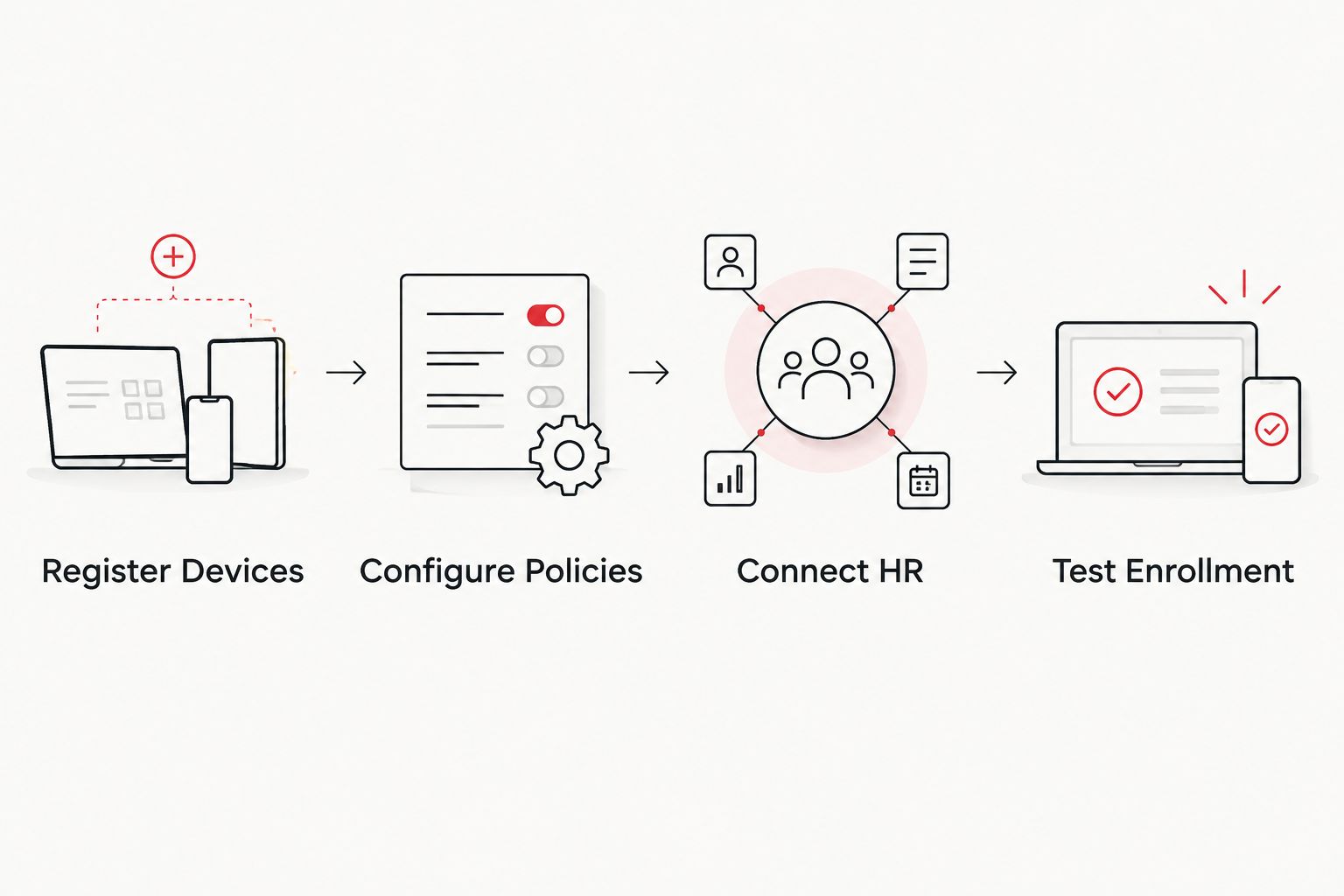
Register devices
- In the Microsoft Intune admin center, open Devices, select Enrollment, choose Windows, and open Windows Autopilot devices.
- Select Import when the reseller has supplied a CSV containing the required device identity information. If the reseller registers purchases directly, confirm that the serial number already appears.
- Create a group for the intended deployment profile. A dynamic device group reduces manual assignment work when the group rule is tied to the Autopilot enrollment identity or group tag.
- Open Devices > Enrollment > Windows > Deployment Profiles and select Create Profile. Choose the Windows device type used by your organization.
- Assign the deployment profile to the device group. Confirm that the device record shows the intended profile before releasing the shipment.
For Apple devices, connect the MDM server in Apple Business Manager, assign purchased devices to that server, and synchronize the enrollment token in the MDM console. For supported Android devices, associate the zero-touch configuration with the company account and eligible hardware.
Expected result: the test device appears in the hardware enrollment program and has an assigned MDM deployment profile before anyone turns it on.
Configure policies
- Define the first-boot experience. In an Intune Autopilot profile, configure Deployment mode, Join to Microsoft Entra ID as, User account type, and the visible out-of-box experience options.
- Use a standard user account unless the employee has an approved administrative requirement. Automatic enrollment should not silently create unnecessary local administrators.
- Create device configuration profiles for the settings your business requires. Common controls include disk encryption, screen locking, operating-system updates, browser configuration, and restrictions on unapproved local changes.
- Create a compliance policy that checks the conditions required for access. Keep configuration and compliance separate: configuration applies settings, while compliance evaluates whether the device meets the standard.
- Pair compliance with conditional access only after the test device reports correctly. Enforcing access restrictions before validating policy evaluation can lock a legitimate employee out during onboarding.
- Assign endpoint protection through the same device or user groups so the security agent arrives as part of managed setup rather than as a separate helpdesk task.
In 2026, treat policy names as operational records. A label such as Windows Corporate Standard is easier to audit than an unexplained profile name left over from a test deployment. Document the owner, purpose, scope, and rollback method for each production policy.
Expected result: the test device receives its configuration, reports compliance state, and appears in the correct inventory group after the employee authenticates.
Connect HR and purchasing
- Choose the HR milestone that starts provisioning. Use a confirmed hire or approved start date rather than an early recruiting stage that can change.
- Create an onboarding ticket containing the employee name, start date, manager, location, employment type, required applications, device type, and shipping destination. Limit sensitive data to fields IT needs.
- Route the approved device request to the purchasing process. Require the order to use a reseller that supports the selected hardware enrollment program.
- Pass a consistent group tag, order identifier, or asset reference into the device record. This connects the physical shipment to the correct deployment profile without relying on an administrator to recognize a serial number.
- Schedule identity creation and license assignment before delivery. The account can remain disabled until the approved activation time while still being ready for policy targeting.
- Send the employee only the instructions required for first boot: connect power, connect to the internet, and sign in with the company identity when prompted. Do not add a manual MDM installation step to a zero-touch workflow.
Protect the integration account used by this automation. Grant only the permissions needed to create the ticket, update the asset record, or place the user in approved groups. A broad HR-to-IT service account creates unnecessary access if its credentials are exposed.
Expected result: an approved HR event creates a trackable IT request, starts the supported purchasing path, and prepares the correct identity and MDM assignments.
Enroll personal devices with app protection
A personal device needs a different workflow. Full MDM enrollment gives the organization device-level control that employees may not accept and that the business may not need.
- Create an app protection policy for approved business applications such as email, collaboration, and managed file access.
- Require the employee to authenticate with the company identity inside the managed application.
- Restrict company data from moving into unmanaged applications when the platform supports that control.
- Configure selective removal of corporate app data when the employee leaves, loses access, or reports the device missing.
- Use conditional access to require the approved application and protection policy for relevant company resources.
Expected result: company data receives application-level protection while personal photos, messages, applications, and device settings remain outside full MDM control.
Test the complete workflow
Reset the test device to its out-of-box state and use a non-production test identity. Complete the same network connection and authentication steps a remote employee will follow in 2026.
Verify each system separately:
- The enrollment screen displays the organization-managed setup rather than consumer setup.
- The device appears in MDM inventory with the expected serial number and test user.
- Configuration and compliance policies report against the intended device.
- Required security software installs without a separate administrator login.
- Conditional access permits the expected applications and blocks only the scenarios defined by policy.
- The asset record, onboarding ticket, and device record share a usable identifier.
Do not approve the workflow based only on a successful sign-in. A user can reach the desktop while applications are still missing or compliance evaluation is incomplete. The test passes when each system reports the expected state and IT can identify any failed stage.
Troubleshooting
The device enters consumer setup
The hardware record is missing, assigned to another tenant, or lacks a deployment profile. Confirm the serial or hardware identity in the enrollment program, synchronize the MDM connector, assign the profile, and reset the device before testing again.
The employee cannot authenticate
Check that the identity is active, the required MDM entitlement is assigned, and the user falls within the profile's assignment scope. Also confirm that conditional access is not demanding compliance before enrollment can finish.
The device enrolls but remains noncompliant
Open the individual compliance results rather than relying on the summary state. Identify whether encryption, operating-system requirements, password settings, or another control failed. Fix the underlying setting before weakening the policy.
Applications do not install
Confirm whether each application targets the device group or user group. Verify application requirements, detection rules, dependencies, and architecture. A successful enrollment does not prove that every software package has a valid assignment.
A reassigned device shows the previous owner
Remove stale primary-user and asset assignments, confirm that required business data has been preserved, and wipe the device through the approved process. Reassignment without a clean reset can leave ownership records and user-specific settings attached to the wrong employee.
Customize your workflow
Once enrollment works, add controls around it rather than adding more manual steps. Connect the device group to small-business endpoint protection, backup requirements, vulnerability reporting, and offboarding actions.
For higher-risk roles, create separate profiles for privileged administrators, contractors, shared devices, and employees handling regulated data. Separate profiles make exceptions visible. One oversized policy filled with exclusions is harder to audit and easier to break.
Cyber Solutions can also connect Microsoft identity events to containment actions. The Microsoft 365 automatic device lockdown workflow explains how group or account changes can trigger a controlled response after enrollment.
Audit your enrollment workflow
Find registration, policy, identity, and handoff gaps before the next employee starts.
FAQ
What is automatic MDM enrollment for new employees?
Automatic MDM enrollment registers a company device before delivery so managed setup starts during its first boot. The employee authenticates, and the assigned configuration and compliance policies begin applying without a manual profile installation.
Can MDM enrollment happen before an employee starts?
The hardware registration, deployment profile, user groups, and application assignments can be prepared before the start date. Final user enrollment usually begins when the employee powers on the device and authenticates.
Does automatic enrollment work for remote employees?
Yes, automatic enrollment is designed to work without IT physically handling the device after shipment. The device needs internet access, a valid hardware registration, an assigned profile, and a prepared user identity.
Is Windows Autopilot an MDM platform?
No, Windows Autopilot handles registration and the Windows deployment experience, while an MDM platform such as Microsoft Intune applies management policies. The two work together but perform different functions.
Should personal employee devices receive full MDM enrollment?
Not by default. App protection and conditional access can protect company data without granting full control over a personal device, while full enrollment is better suited to company-owned hardware.
Why does an enrolled device still show as noncompliant?
Enrollment confirms that the device is managed; it does not confirm that every compliance condition passed. Review the device-level compliance results to identify the failed encryption, operating-system, password, or security control.
How should a business test automatic device enrollment in 2026?
Reset a dedicated test device to the out-of-box state and complete the workflow with a non-production identity. Verify hardware registration, profile assignment, policy delivery, application installation, compliance reporting, and asset ownership before using the process for a real employee.
Can Cyber Solutions manage automatic MDM enrollment?
Yes. Cyber Solutions provides managed IT and cybersecurity services to small and mid-sized US businesses, including the operational controls surrounding endpoint management, protection, and incident response.
One last thing
The purchasing rule determines whether this automation survives beyond the first test. Cyber Solutions recommends documenting approved device models, supported resellers, enrollment registration requirements, and the owner responsible for checking profile assignment before shipment. In 2026, an excellent MDM configuration still fails when someone buys the next laptop through an unsupported channel.